Is your Shark SV780 cordless vacuum refusing to charge? This can be frustrating, especially when you need it for a quick cleanup. This article provides a comprehensive guide to help you diagnose and fix the charging issue, ensuring your vacuum is ready when you need it. We’ll cover everything from basic checks to more advanced troubleshooting steps.
A cordless vacuum like the Shark SV780 offers convenience and portability, but a charging problem can quickly render it useless. Before assuming the worst, know that many charging issues are easily resolved with a few simple checks and troubleshooting steps. This guide will walk you through the most common causes of a Shark SV780 not charging and offer practical solutions to get your vacuum back up and running. Let’s dive in and get your Shark SV780 charging again!
Check the Basics First

Before diving into more complex troubleshooting, start with these basic checks to rule out simple causes:
- Power Outlet: Ensure the outlet you’re using is working correctly. Plug another device into the outlet to confirm it’s providing power.
- Charging Cable: Inspect the charging cable for any visible damage, such as cuts, frays, or exposed wires. If you notice any damage, replace the cable immediately.
- Connections: Make sure the charging cable is securely plugged into both the vacuum and the power outlet. A loose connection can prevent the vacuum from charging.
Clean the Charging Contacts
Dirty or corroded charging contacts can prevent the vacuum from charging properly.
- Locate the Charging Contacts: Find the charging contacts on both the vacuum and the charging base or adapter.
- Gather Supplies: You’ll need a clean, dry cloth or cotton swab and some isopropyl alcohol (optional).
- Clean the Contacts: Dampen the cloth or cotton swab with isopropyl alcohol (if using) and gently clean the charging contacts on both the vacuum and the charging base.
- Dry Thoroughly: Allow the contacts to dry completely before attempting to charge the vacuum.
Reset the Vacuum
Sometimes, a simple reset can resolve charging issues by clearing any internal errors or glitches.
- Locate the Power Switch: Find the power switch on your Shark SV780.
- Turn Off the Vacuum: Turn the power switch to the “Off” position.
- Remove the Battery (if applicable): If your model has a removable battery, take it out.
- Wait: Wait for about 15-30 minutes.
- Reassemble: Reinsert the battery (if removed) and turn the power switch back to the “On” position.
- Try Charging: Connect the charger and see if the vacuum starts charging.
Check the Battery

A faulty battery is a common reason for charging problems.
- Inspect the Battery: If your Shark SV780 has a removable battery, take it out and inspect it for any signs of damage, such as swelling, leakage, or corrosion.
- Test with a Multimeter (Advanced): If you have a multimeter, you can test the battery voltage to see if it’s within the normal range. Refer to the vacuum’s manual for the correct voltage specifications. If the voltage is significantly lower than expected, the battery may be faulty.
- Replace the Battery: If the battery is damaged or not holding a charge, replace it with a new, compatible battery from Shark or a reputable retailer.
Inspect the Charging Base or Adapter
If your Shark SV780 uses a charging base or adapter, ensure it’s functioning correctly.
- Check for Damage: Inspect the charging base or adapter for any visible damage, such as cracks, broken parts, or loose connections.
- Test the Output Voltage: If you have a multimeter, you can test the output voltage of the charging base or adapter to ensure it’s providing the correct voltage. Refer to the vacuum’s manual for the correct voltage specifications.
- Try a Different Charging Base or Adapter: If possible, try using a different charging base or adapter that is compatible with your Shark SV780 to see if that resolves the issue.
- Replace the Charging Base or Adapter: If the charging base or adapter is damaged or not providing the correct voltage, replace it with a new one from Shark or a reputable retailer.
Address Overheating Issues
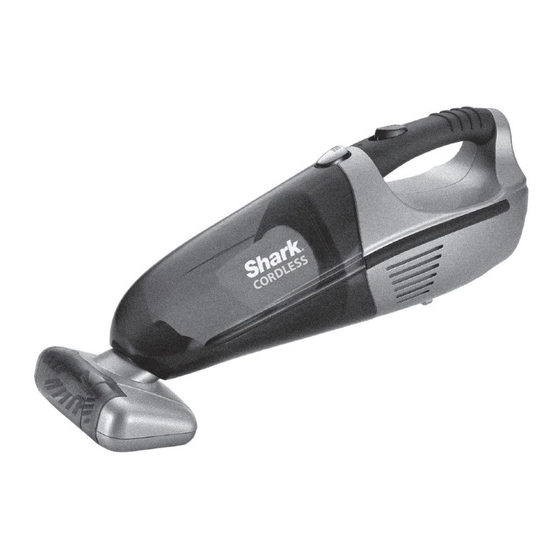
Sometimes, the Shark SV780 may refuse to charge if it’s overheating.
- Allow to Cool Down: If you’ve been using the vacuum for an extended period, turn it off and let it cool down completely before attempting to charge it.
- Ensure Proper Ventilation: Make sure the vacuum and charging base are placed in a well-ventilated area, away from direct sunlight or heat sources.
- Clean the Filters: Clogged filters can cause the vacuum to overheat. Clean the filters according to the manufacturer’s instructions to ensure proper airflow.
Troubleshooting Guide
| Problem | Possible Cause(s) | Solution(s) |
|---|---|---|
| Vacuum not charging at all | Faulty power outlet, damaged charging cable, loose connection | Check power outlet, replace charging cable, ensure secure connections |
| Vacuum charges intermittently | Dirty charging contacts, loose connection | Clean charging contacts, ensure secure connections |
| Vacuum not holding charge | Old or damaged battery | Replace battery |
| Charging base/adapter not working | Damaged charging base/adapter | Replace charging base/adapter |
| Vacuum overheating during charging | Poor ventilation, clogged filters | Ensure proper ventilation, clean filters |
FAQ Section
Why is my Shark vacuum not charging even when the power light is on?
Even if the power light is on, the vacuum might not be charging due to dirty charging contacts or a faulty battery. Try cleaning the charging contacts and checking the battery’s condition. It’s possible that the light indicates power, but the current isn’t flowing effectively to charge the battery.
How often should I replace the battery on my Shark SV780?
The lifespan of a Shark SV780 battery depends on usage, but typically, it should be replaced every 1-2 years. If you notice a significant decrease in runtime or charging performance, it’s time to consider a new battery. Consistent and proper maintenance can also extend the battery life.
Can I use a different charger for my Shark SV780?
No, you should only use the charger specifically designed for your Shark SV780 model. Using a different charger with incorrect voltage or amperage can damage the vacuum or create a safety hazard. Always refer to the manufacturer’s specifications for the correct charger.
What does it mean when the Shark vacuum charging light is flashing?
A flashing charging light usually indicates an error, such as a charging problem, a faulty battery, or overheating. Consult your vacuum’s manual to identify the specific meaning of the flashing light and follow the recommended troubleshooting steps. Resetting the vacuum might also help resolve the issue.
How do I know if my Shark vacuum battery is completely dead?
If your Shark vacuum no longer holds a charge, doesn’t power on even after charging, or shows signs of damage like swelling or leakage, the battery might be completely dead. Testing the battery voltage with a multimeter can confirm this. If the voltage is zero or very low, it’s time for a replacement.
Tips, Warnings, and Best Practices
- Always use the correct charger: Using the wrong charger can damage the battery and void the warranty.
- Clean the filters regularly: Clogged filters can cause the vacuum to overheat, which can affect charging performance.
- Store the vacuum in a cool, dry place: Extreme temperatures can damage the battery.
- Avoid overcharging the battery: Once the battery is fully charged, unplug the vacuum to prevent overcharging, which can shorten battery life.
- Handle the battery with care: Avoid dropping or damaging the battery, as this can cause it to malfunction.
Conclusion
Dealing with a Shark SV780 that won’t charge can be a hassle, but by following these troubleshooting steps, you can often resolve the issue quickly and easily. Start with the basic checks, then move on to more advanced solutions like cleaning the charging contacts, resetting the vacuum, and checking the battery and charging base. With a little patience and effort, you can get your Shark SV780 back to its optimal performance, ensuring your home stays clean and tidy. If all else fails, consider contacting Shark customer support or a qualified repair technician for further assistance.