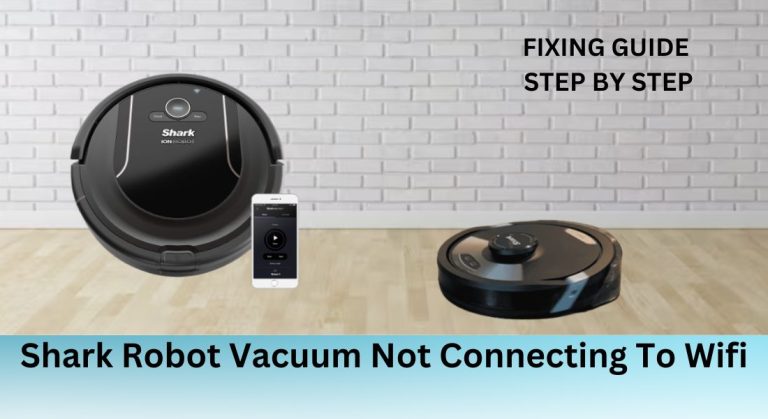
The Shark robot vacuum is a game-changer for maintaining a clean home with minimal effort. However, its functionality heavily relies on a stable Wi-Fi connection to access features like remote control via the SharkClean app, scheduling cleanings, and receiving updates. When your Shark robot vacuum fails to connect to Wi-Fi, it can disrupt its efficiency and leave you frustrated. This guide will help you understand the common causes of connectivity issues and provide step-by-step solutions to get your vacuum back online.
Table of Contents
Most Common Connectivity Issues

Wi-Fi connectivity issues with Shark robot vacuums can stem from various factors. Poor Wi-Fi signal strength, outdated software, incorrect network settings, or physical obstructions are among the most common culprits. Symptoms of these issues include the vacuum being unresponsive, failing to connect to the SharkClean app, or not appearing on the app at all. Identifying the root cause is the first step toward resolving the problem.
Identifying the Root Cause
To pinpoint the source of the connectivity issue, start by checking your Wi-Fi network and device settings. Ensure your Wi-Fi network is stable and functioning properly. Verify that the Shark robot vacuum is connected to the correct network and that Wi-Fi is enabled on the device. Additionally, check for any software updates that might address connectivity bugs.
Checking Wi-Fi Network and Device Settings
A stable Wi-Fi network is essential for your Shark robot vacuum to function seamlessly. Ensure your router is working correctly and that the vacuum is within range. If you’re using a dual-band router, make sure the vacuum is connected to the 2.4 GHz band, as it doesn’t support 5 GHz networks. Also, check the SharkClean app for any notifications or updates that might resolve the issue.
Troubleshooting Steps
Start with basic troubleshooting steps to resolve the issue. Restart both your Shark robot vacuum and Wi-Fi router to refresh the connection. Open the SharkClean app to check for updates or notifications that might provide insights into the problem. If these steps don’t work, consider resetting the device to clear any software glitches.
Resetting Your Shark Robot Vacuum
Resetting your Shark robot vacuum can often resolve persistent connectivity issues. This process clears any incorrect settings or software glitches that might be causing the problem. However, be cautious as resetting the device will erase custom settings and schedules, requiring you to reconfigure them afterward.
Step-by-Step Reset Process
To reset your Shark robot vacuum, locate the reset button on the device. Press and hold the button for about 10 seconds until you hear a beep or see a light indicator confirming the reset. Wait for the device to restart, then set it up again using the SharkClean app. Reconnect it to your Wi-Fi network and reconfigure any custom settings or schedules.
Advanced Troubleshooting

If basic troubleshooting doesn’t resolve the issue, consider advanced techniques. Check for firmware updates, reset the vacuum to its factory settings, or contact Shark’s customer support for further assistance. These steps can address deeper software issues or hardware malfunctions.
Checking for Firmware Updates
Keeping your Shark robot vacuum’s firmware up to date is crucial for optimal performance. Firmware updates often include bug fixes and improvements that can resolve connectivity issues. To check for updates, open the SharkClean app and navigate to the device settings. If an update is available, follow the on-screen instructions to install it.
Resetting the Shark Robot Vacuum to its Factory Settings
Resetting the vacuum to its factory settings is a more drastic measure but can resolve persistent issues. To do this, press and hold the power and reset buttons simultaneously for about 10 seconds. Wait for the device to restart, then reconfigure it using the SharkClean app. Be sure to back up any important information before performing this reset.
Additional Tips and Considerations
To prevent future connectivity issues, keep your Shark robot vacuum and charging dock in an open area free from physical obstructions. Avoid placing the vacuum near devices that may cause interference, such as microwaves or cordless phones. Regularly update the device’s software and firmware to ensure it runs smoothly.
Common Issues and Resolutions
Some common issues include incorrect password errors, failure to connect, or lost connections after warranty expiration. To resolve these, ensure your Wi-Fi password doesn’t contain special characters and that the vacuum is within range of the router or mesh system. If the problem persists, reset the device or contact Shark’s customer support for further assistance.