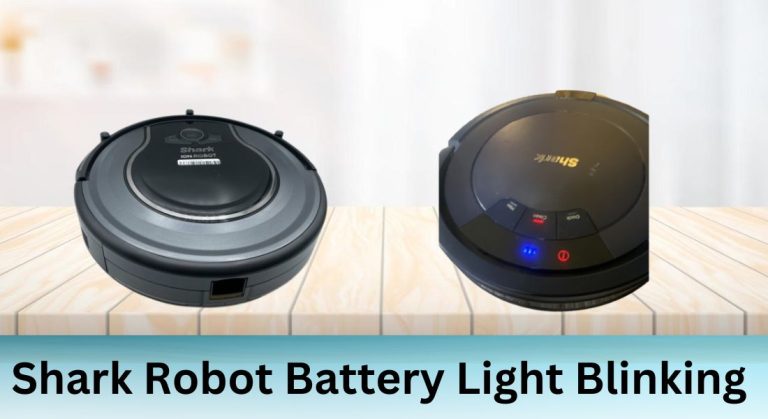
Shark robot vacuums, like the Shark IQ Robot and Shark ION Robot R75, are designed to make cleaning effortless. However, encountering a blinking battery light can be frustrating and confusing. This guide will help you understand what the blinking battery light means, how to troubleshoot the issue, and steps to resolve it effectively.
Shark Robot Lights and Their Meanings
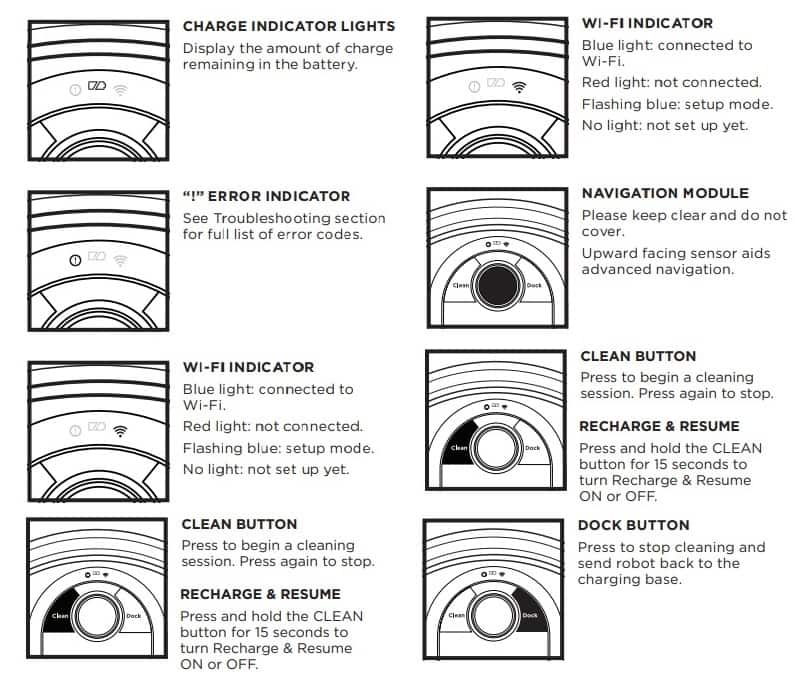
Types of Lights and Their Indications
Shark robot vacuums use a variety of lights to communicate their status. These lights can be categorized into three main types: indicator lights, mode indicator lights, and error codes.
- Indicator Lights: A blue light typically indicates that the robot is operating or charging, while a red light often signals an error, such as low battery, obstruction, or brush issues.
- Mode Indicator Lights: Different colors or blinking patterns can indicate the robot’s current mode, such as cleaning, docking, or updating.
- Error Codes: Specific light sequences correspond to particular error codes, which can be found in the user manual or online resources.
Troubleshooting with Lights
The blinking battery light is a common issue that can stem from various causes, including charging problems, battery issues, or sensor malfunctions. Understanding the light patterns is the first step in diagnosing the problem.
Diagnostic Steps for Battery Light Blinking
Initial Troubleshooting
When you notice the battery light blinking, start with these basic troubleshooting steps:
- Charge the Robot: Place the robot on its dock and let it charge for at least 3 hours or overnight.
- Restart the Robot: Turn off the robot and the dock for 10 seconds, then turn them back on.
- Check the Power Button: Ensure the robot’s power button is in the “on” position.
- Inspect the Charger and Dock: Make sure the charger is plugged into a working outlet and the dock is correctly assembled and placed on a flat surface.
Advanced Troubleshooting
If the initial steps don’t resolve the issue, consider these advanced troubleshooting methods:
- Clean the Charging Contacts: Dirt and debris on the charging contacts can disrupt the charging process. Gently clean the contacts on both the robot and the dock with a soft cloth or small brush.
- Check for Software Updates: Ensure the robot’s software is up to date, as updates often include fixes for known issues.
- Inspect the Power Source: Avoid using extension cords or power strips. Plug the charger directly into a wall outlet to rule out power source issues.
Resolving Battery Light Blinking Issues

Cleaning and Maintenance
Regular maintenance can prevent battery-related issues:
- Clean the Brushes: Remove hair and debris from the main brush and side brushes.
- Empty the Dustbin: Regularly empty the dustbin to maintain optimal performance.
- Update Software: Keep the robot’s software updated to benefit from the latest fixes and improvements.
Replacement and Repair Options
If troubleshooting doesn’t resolve the issue, it may be time to replace or repair certain components:
- A faulty or aging battery is a common cause of blinking lights and reduced runtime. If the issue persists even after cleaning and resetting, consider replacing the battery.
Shop Shark Replacement Batteries to ensure compatibility and long-lasting power.. - Component Replacement: Check the main brush, side brushes, and drive motors for wear and tear. Replace any components that are damaged or worn out.
Preventing Future Battery Issues
Best Practices for Battery Care
To prolong your Shark robot’s battery life, follow these tips:
- Proper Charging Habits: Avoid overcharging or undercharging the battery. Charge the robot as needed and remove it from the dock once fully charged.
- Storage Techniques: Store the robot in a cool, dry place when not in use.
- Monitor Battery Health: Regularly check the battery’s performance and address any issues promptly.
Common Mistakes to Avoid
Avoid these common mistakes to ensure optimal battery performance:
- Overcharging: Leaving the robot on the dock for extended periods can reduce battery life.
- Undercharging: Ensure the robot is fully charged before use.
- Neglecting Maintenance: Regular cleaning and maintenance are essential for preventing battery issues.
Conclusion
The blinking battery light on your Shark robot vacuum can be a sign of various issues, from simple charging problems to more complex battery or sensor malfunctions. By understanding the light indicators, following systematic troubleshooting steps, and maintaining your robot regularly, you can resolve the issue and keep your vacuum running efficiently.
Remember to monitor battery health, avoid common mistakes, and replace components as needed to ensure your Shark robot remains a reliable cleaning companion.