Is your Shark Roomba vacuum acting up? It’s frustrating when your robotic helper suddenly stops doing its job. This article will guide you through common issues and how to troubleshoot them, so you can get your Shark Roomba back to cleaning your floors efficiently. We’ll cover everything from basic checks to more advanced troubleshooting steps.
Understanding Why Your Shark Roomba Isn’t Working

A malfunctioning Shark Roomba can stem from various reasons, including simple issues like a depleted battery or a full dustbin, or more complex problems with the sensors or motors. Identifying the root cause is the first step in getting it back in action. Regular maintenance is crucial to keep these devices running smoothly, and neglecting it can lead to performance issues.
This guide will walk you through a systematic approach to diagnosing and resolving common problems. We’ll cover battery issues, sensor problems, brush malfunctions, connectivity troubles, and provide tips for preventative maintenance. By the end of this article, you’ll have the knowledge to troubleshoot your Shark Roomba and potentially avoid costly repairs.
Basic Troubleshooting Steps
Before diving into more complex solutions, start with these simple checks:
Check the Battery
A dead or weak battery is a common culprit.
- Charging: Ensure the Roomba is properly docked and charging. The charging indicator light should be illuminated.
- Charging Time: Allow the Roomba to charge for at least 3-6 hours.
- Battery Health: If the Roomba still doesn’t power on or run for very long after a full charge, the battery might need replacing.
Empty the Dustbin
A full dustbin can prevent the Roomba from functioning correctly.
- Removal: Remove the dustbin from the Roomba.
- Emptying: Empty the contents into a trash can.
- Cleaning: Clean the dustbin and filter with a brush or vacuum to remove any debris.
- Reinstall: Ensure the dustbin is properly reinstalled before operating the Roomba.
Clean the Sensors
Dirty sensors can impair navigation and obstacle detection.
- Location: Locate the sensors on the Roomba (usually on the bumper and underside).
- Cleaning: Use a clean, dry cloth to gently wipe the sensors.
- Frequency: Clean the sensors regularly, especially if you have pets or live in a dusty environment.
Advanced Troubleshooting
If the basic steps didn’t solve the problem, try these more in-depth solutions:
Brush Issues
The brushes are essential for picking up dirt and debris.
- Inspection: Check the main brush and side brush for tangled hair, strings, or other obstructions.
- Cleaning: Remove the brushes and use scissors or a brush cleaning tool to remove any debris.
- Reinstallation: Reinstall the brushes, ensuring they are securely in place.
- Replacement: If the brushes are worn or damaged, consider replacing them.
Wheel Problems
Wheels can get stuck or obstructed, preventing movement.
- Inspection: Check the wheels for any obstructions, such as hair or debris.
- Cleaning: Remove any visible obstructions.
- Rotation: Ensure the wheels can rotate freely.
- Testing: Test the Roomba on a hard surface to see if the wheels are functioning correctly.
Connectivity Issues
If your Roomba isn’t connecting to the app or Wi-Fi:
- Wi-Fi Signal: Ensure your Wi-Fi network is working and the Roomba is within range.
- App Reset: Close and reopen the SharkClean app.
- Roomba Reset: Restart the Roomba by holding down the CLEAN button for 15-20 seconds.
- Reconnection: Follow the app instructions to reconnect the Roomba to your Wi-Fi network.
Error Codes
Error codes can provide valuable clues about the problem. Consult your Shark Roomba’s manual or the SharkClean app for a list of error codes and their meanings. Common error codes might indicate issues with the sensors, brushes, or battery. Once you identify the error code, follow the recommended troubleshooting steps.
Preventing Future Issues
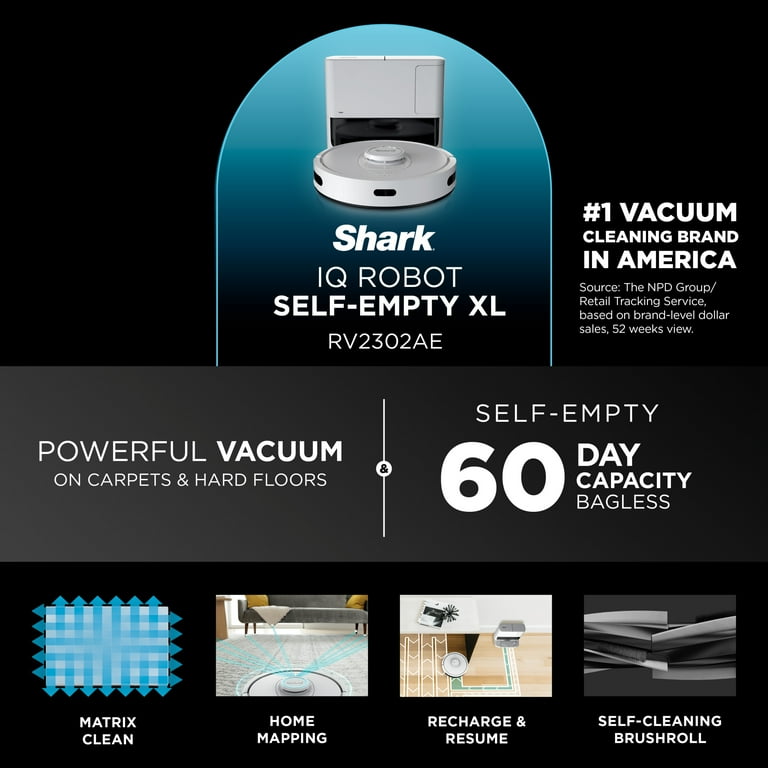
Regular maintenance can keep your Shark Roomba running smoothly.
- Weekly Cleaning: Empty the dustbin and clean the brushes weekly.
- Monthly Maintenance: Clean the sensors and check the wheels monthly.
- Filter Replacement: Replace the filter every 2-3 months, or as needed.
- Battery Care: Avoid letting the battery completely drain before recharging.
- Software Updates: Keep the Roomba’s software updated through the SharkClean app.
Practical Elements
Tools/Materials:
- Screwdriver (for removing brushes)
- Scissors or brush cleaning tool
- Clean, dry cloth
- Vacuum cleaner (for cleaning dustbin and filter)
- Replacement brushes and filters
Preparation Steps:
- Unplug the Roomba from the charging dock.
- Gather the necessary tools and materials.
- Clear the area around the Roomba for easy access.
Troubleshooting Guide:
| Problem | Possible Solution |
|---|---|
| Roomba won’t turn on | Check battery, ensure it’s properly charging |
| Poor cleaning performance | Empty dustbin, clean brushes and filters |
| Roomba gets stuck | Clean sensors, check wheels for obstructions |
| Connectivity issues | Restart Roomba, check Wi-Fi, reinstall app |
| Error codes displayed | Consult manual for code meaning, follow recommended steps |
Pro Tips:
- Schedule regular cleaning sessions to prevent buildup of dirt and debris.
- Use virtual boundaries or magnetic strips to keep the Roomba away from sensitive areas.
- Monitor the Roomba during its first few cleaning sessions to identify potential problem areas.
FAQ Section
Why does my Shark Roomba keep getting stuck in the same spot?
This is often due to dirty or malfunctioning cliff sensors. Clean the sensors with a dry cloth. If the problem persists, the sensor may be faulty and require replacement.
How often should I replace the filter on my Shark Roomba?
It’s generally recommended to replace the filter every 2-3 months, depending on how frequently you use the Roomba and the amount of dirt and debris in your home. If you have pets, you may need to replace it more often.
What does it mean when my Shark Roomba displays an error code?
Error codes indicate specific problems with the Roomba. Consult your user manual or the SharkClean app for a list of error codes and their corresponding solutions. Common issues include brush malfunctions, sensor problems, or battery issues.
Can I use any cleaning solution in my Shark Roomba?
No, you should not use any cleaning solutions in your Shark Roomba unless the manufacturer specifically states that it’s safe to do so. Using unauthorized cleaning solutions can damage the Roomba’s internal components.
How do I reset my Shark Roomba to factory settings?
To reset your Shark Roomba, hold down the CLEAN button for 15-20 seconds until the Roomba restarts. This will reset the Roomba to its default settings and clear any saved data.
What should I do if my Shark Roomba’s battery won’t charge?
First, ensure the Roomba is properly docked and the charging indicator light is illuminated. If it still won’t charge, try cleaning the charging contacts on both the Roomba and the charging dock. If the problem persists, the battery may need to be replaced.
Tips, Warnings, and Best Practices
- Safety First: Always unplug the Roomba before performing any maintenance or repairs.
- Avoid Water: Never submerge the Roomba or its components in water.
- Read the Manual: Consult the user manual for specific instructions and troubleshooting tips for your model.
- Use Genuine Parts: When replacing parts, use genuine Shark Roomba parts to ensure compatibility and performance.
- Professional Help: If you’ve tried all the troubleshooting steps and your Roomba still isn’t working, consider contacting Shark customer support or a qualified repair technician.
Conclusion
Troubleshooting a Shark Roomba vacuum can seem daunting, but by following these steps, you can often resolve common issues and get your robotic vacuum back to work. Regular maintenance, careful cleaning, and prompt attention to error codes will extend the life of your Roomba and keep your floors clean. If problems persist, don’t hesitate to seek professional help to ensure your Shark Roomba continues to provide efficient cleaning for years to come.