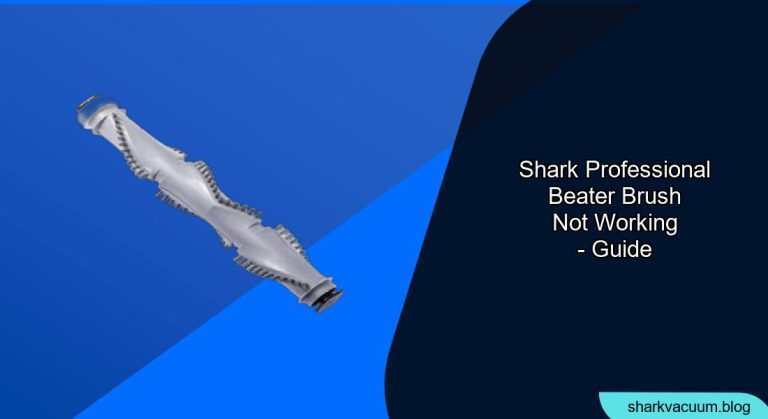
Is your Shark Professional vacuum’s beater brush giving you trouble? A malfunctioning beater brush can significantly impact your vacuum’s cleaning performance, leaving dirt and debris behind. This guide provides comprehensive troubleshooting steps to diagnose and resolve the issue, ensuring your Shark vacuum operates at its best. We’ll cover common causes, practical solutions, and preventive measures to keep your beater brush spinning smoothly.
This article matters because a working beater brush is crucial for deep cleaning carpets and rugs, agitating fibers to loosen embedded dirt and pet hair. Without it, you’re only surface cleaning, leaving allergens and grime trapped in your flooring. We will walk through a series of checks and fixes, from simple resets to more involved maintenance, to get your Shark Professional vacuum back in action. Let’s get started on how to fix a Shark professional beater brush.
Common Causes of a Malfunctioning Beater Brush

Several factors can cause your Shark Professional’s beater brush to stop working. Identifying the root cause is the first step towards fixing the problem. Here are some common culprits:
- Obstructions: Hair, string, and debris can wrap around the beater brush, preventing it from spinning freely.
- Overheating: The motor may overheat if the brush is obstructed, triggering a safety mechanism that shuts it down.
- Belt Issues: If your model has a belt-driven brush, the belt may be broken, stretched, or misaligned.
- Sensor Problems: Some models have sensors that detect if the brush is properly engaged; these can malfunction.
- Motor Failure: In rare cases, the beater brush motor itself may fail, requiring replacement.
Step-by-Step Troubleshooting
Follow these steps to diagnose and fix your Shark Professional’s beater brush:
- Check for Obstructions:
- Power Off: Turn off and unplug your vacuum to prevent accidental start-ups.
- Inspect the Brush: Carefully examine the beater brush for tangled hair, string, or debris.
- Remove Debris: Use scissors or a seam ripper to cut away tangled materials. Be gentle to avoid damaging the brush bristles.
- Test: Plug in and turn on the vacuum to see if the brush spins freely.
- Reset the Vacuum:
- Unplug: Disconnect the vacuum from the power outlet.
- Wait: Let the vacuum sit unplugged for at least 60 minutes to allow the motor to cool down and reset.
- Plug In: Reconnect the vacuum and test the beater brush.
- Inspect the Brush Belt (If Applicable):
- Access the Brush Roll: Depending on your model, you may need to remove a cover or access panel to reach the brush roll and belt.
- Check Belt Condition: Look for signs of wear, tear, or stretching on the belt.
- Replace Belt: If the belt is damaged, replace it with a new one according to your vacuum’s model specifications.
- Ensure Alignment: Make sure the belt is properly aligned on the brush roll and motor shaft.
- Check the Brush Roll Motor:
- Listen for Motor Sound: When you turn on the vacuum, listen closely to see if you can hear the beater brush motor running. If there is no sound, the motor may be faulty.
- Check for Power: Use a multimeter to check if the motor is receiving power. If not, there may be an electrical issue.
- Contact Support: If the motor is not receiving power or sounds faulty, contact Shark customer support or a qualified repair technician.
- Examine the Brush Roll Housing:
- Inspect for Damage: Check the housing around the brush roll for cracks or damage that could be preventing the brush from spinning freely.
- Clean Thoroughly: Remove any dirt or debris from the housing that might be interfering with the brush roll.
- Inspect the Sensors:
- Locate Sensors: Identify any sensors near the brush roll area (refer to your user manual for location).
- Clean Sensors: Gently clean the sensors with a soft, dry cloth to remove any dust or debris.
- Test Sensors: If possible, test the sensors to ensure they are functioning correctly. This may require technical expertise or a multimeter.
Tools/Materials Needed
- Screwdrivers (Phillips and flathead)
- Scissors or seam ripper
- New replacement belt (if needed)
- Multimeter (for advanced diagnostics)
- Soft cloth
- Vacuum cleaner (for cleaning up debris)
Preparation Steps
Before you begin, prepare your workspace by:
- Gathering all necessary tools and materials.
- Ensuring the vacuum is unplugged.
- Having a clear, well-lit area to work in.
Troubleshooting Guide
| Problem | Possible Cause(s) | Solution(s) |
|---|---|---|
| Beater brush won’t spin | Obstruction, overheating, belt issue, sensor problem | Remove obstructions, reset vacuum, replace belt (if necessary), clean sensors |
| Beater brush spins slowly | Obstruction, worn belt, weak motor | Remove obstructions, replace belt, contact customer support for motor issues |
| Beater brush makes loud noise | Obstruction, damaged brush roll, worn bearings | Remove obstructions, replace brush roll, contact customer support for bearing issues |
| Vacuum shuts off suddenly | Overheating, obstruction | Remove obstructions, reset vacuum |
| Brush roll indicator light off | Sensor problem, electrical issue | Clean sensors, contact customer support for electrical issues |
Pro Tips
- Regular Cleaning: Clean the beater brush regularly to prevent hair and debris buildup.
- Belt Maintenance: Check the belt periodically and replace it as needed to maintain optimal performance.
- Avoid Overloading: Don’t try to vacuum excessively dirty areas without first removing large debris.
- Use Correct Settings: Use the appropriate vacuum settings for different floor types to avoid stressing the motor and brush.
Alternatives/Variations
- Manual Brush Cleaning: If you don’t have tools, you can manually pick off hair and debris from the brush.
- Professional Repair: If you’re uncomfortable troubleshooting, take your vacuum to a professional repair shop.
- Different Vacuum Models: Consider upgrading to a newer Shark model with improved brush roll technology.
FAQ Section
Why is my Shark vacuum beater brush not spinning, even after cleaning it?
Even after cleaning, the brush might not spin due to a reset being needed. Unplug the vacuum and allow it to sit for 60 minutes before plugging it back in. Also, make sure that all parts are installed correctly, and the brush roll can move freely. There might be a deeper clog within the vacuum head.
How often should I replace the beater brush belt on my Shark Professional vacuum?
The lifespan of the beater brush belt depends on usage, but it’s generally recommended to replace it every 6-12 months or when you notice signs of wear such as stretching, cracking, or reduced performance. Regular maintenance and timely replacement of parts like the brush belt ensure optimal cleaning performance.
Can I use any replacement belt for my Shark vacuum, or does it have to be a specific type?
You must use the specific replacement belt designed for your Shark vacuum model. Using a generic or incorrect belt can lead to poor performance or damage to the vacuum. Check your vacuum’s manual or the Shark website to identify the correct replacement belt.
What does it mean if the brush roll indicator light is off on my Shark vacuum?
If the brush roll indicator light is off, it could indicate that the brush roll is not engaged, there is an obstruction, or there is an electrical issue. First, ensure that the brush roll is properly engaged and free of obstructions. If the light remains off, there may be a sensor or electrical problem requiring professional repair.
Is it safe to use scissors to remove hair wrapped around the beater brush?
Yes, it is generally safe to use scissors to remove hair wrapped around the beater brush, but exercise caution. Make sure the vacuum is unplugged and use the scissors carefully to avoid cutting or damaging the brush bristles. A seam ripper can also be a safer alternative.
What should I do if my Shark vacuum continues to overheat?
If your Shark vacuum continues to overheat, it may indicate a more significant issue. Ensure that the vacuum is free of obstructions and that the filters are clean. If overheating persists, contact Shark customer support or a qualified repair technician for further assistance. Continuing to use an overheating vacuum can cause permanent damage.
Tips, Warnings, and Best Practices
- Safety First: Always unplug the vacuum before performing any maintenance or troubleshooting.
- Read the Manual: Refer to your Shark Professional vacuum’s user manual for specific instructions and safety guidelines.
- Regular Maintenance: Perform regular maintenance to prevent issues and prolong the life of your vacuum.
- Avoid Water: Never submerge the vacuum or its components in water.
- Professional Help: If you’re unsure about any step, seek help from a qualified technician.
Conclusion
A malfunctioning beater brush on your Shark Professional vacuum can be frustrating, but with the right troubleshooting steps, you can often resolve the issue yourself. By systematically checking for obstructions, resetting the vacuum, inspecting the belt, and examining the motor, you can identify and address the root cause.
Regular maintenance and prompt attention to problems will keep your Shark vacuum performing at its best, ensuring your carpets and floors remain clean and allergen-free. If problems persist, do not hesitate to contact Shark customer support for professional assistance.