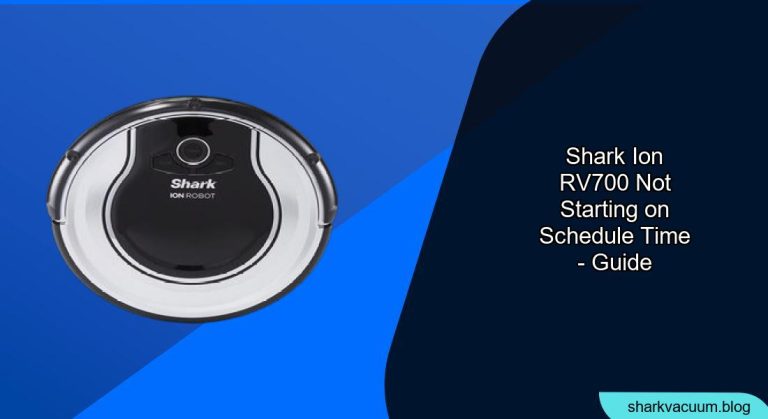
Is your Shark ION robot vacuum failing to start its cleaning schedule? It can be frustrating when your automated cleaning routine breaks down. This article will guide you through troubleshooting steps to get your Shark ION RV700 back on track, ensuring your home stays clean without you having to lift a finger. We’ll explore common causes, provide practical solutions, and offer tips to keep your robot vacuum running smoothly.
Understanding Why Your Shark ION Isn’t Following Its Schedule
A Shark ION robot vacuum failing to start on its scheduled time can stem from several issues. These range from simple fixes like a low battery to more complex problems with the robot’s settings or sensors. Identifying the root cause is the first step to restoring your cleaning schedule. Let’s dive into the common reasons and how to address them.
Checking the Basics: Power and Connectivity

Ensuring Sufficient Battery Charge
The most common reason for a Shark ION not starting is insufficient battery charge. The robot needs enough power to complete its cleaning cycle.
- Verify Charging: Make sure the robot is properly docked on its charging base and that the base is plugged into a working outlet.
- Charging Time: Allow the robot to charge for at least 3-6 hours to reach full capacity.
- Battery Health: If the battery is old, it may not hold a charge effectively. Consider replacing the battery if charging doesn’t resolve the issue.
Verifying Wi-Fi Connectivity
Some Shark ION models rely on Wi-Fi connectivity for scheduling. A dropped connection can prevent the robot from starting.
- Check Wi-Fi Signal: Ensure your home Wi-Fi network is stable and the robot is within range.
- Reconnect Robot: If the robot has lost connection, follow the instructions in the SharkClean app to reconnect it to your network.
- Firmware Updates: Keep the robot’s firmware updated through the app to ensure compatibility and fix potential bugs.
Reviewing and Adjusting the Schedule Settings
Accessing the Schedule Settings
Incorrect schedule settings are another frequent cause. Double-checking and adjusting the settings can often resolve the problem.
- Open SharkClean App: Launch the SharkClean app on your smartphone or tablet.
- Navigate to Schedule: Find the “Schedule” or “Scheduling” option in the app’s menu.
- Review Schedule: Examine the set schedule times, days, and cleaning modes to ensure they are correct.
Correcting Schedule Errors
Typos or conflicting settings can prevent the robot from starting as planned.
- Verify Time and Day: Confirm that the start times and days of the week are accurate.
- Avoid Overlapping Schedules: Ensure there are no conflicting schedules that might confuse the robot.
- Save Changes: After making adjustments, save the new settings and allow the robot to sync.
Troubleshooting Sensor and Obstruction Issues
Cleaning the Sensors
The Shark ION uses sensors to navigate and avoid obstacles. Dirty or blocked sensors can disrupt its ability to start or navigate properly.
- Locate Sensors: Identify the sensors on the robot, usually located on the bottom and front.
- Gentle Cleaning: Use a soft, dry cloth to gently wipe the sensors clean. Avoid using liquids or abrasive materials.
- Regular Maintenance: Clean the sensors regularly, especially if you have pets or the robot operates in dusty environments.
Removing Obstructions
Obstructions can also prevent the robot from starting its schedule.
- Clear the Path: Before the scheduled cleaning time, ensure the floor is clear of obstacles like cables, small objects, and loose rugs.
- Check Wheels and Brushes: Make sure the wheels and brushes are free from tangled hair, debris, or other obstructions.
- Virtual Boundaries: If using virtual boundaries, ensure they are correctly placed and not interfering with the robot’s starting point.
Resetting Your Shark ION Robot Vacuum
Performing a Soft Reset
A soft reset can resolve minor software glitches that might be preventing the robot from starting.
- Power Off: Turn off the robot vacuum using the power switch.
- Wait: Wait for about 10-15 seconds.
- Power On: Turn the robot back on and allow it to recalibrate.
Performing a Hard Reset
If a soft reset doesn’t work, a hard reset might be necessary. Note that this will reset all settings to factory defaults.
- Consult Manual: Refer to your Shark ION RV700’s user manual for specific hard reset instructions, as the method can vary by model.
- Press and Hold: Typically, this involves pressing and holding a specific button (usually the power or dock button) for an extended period (e.g., 10-20 seconds).
- Reconfigure: After the reset, you’ll need to reconnect the robot to your Wi-Fi and reconfigure your cleaning schedules.
FAQ About Shark ION Scheduling Issues
Why does my Shark ION randomly stop during a scheduled cleaning?
This can be due to low battery, a full dustbin, or an obstruction. Ensure the robot is fully charged, the dustbin is emptied regularly, and the cleaning path is clear.
How do I know if my Shark ION battery needs replacing?
If the robot’s battery life has significantly decreased or it fails to hold a charge, it’s likely time to replace the battery. You can purchase replacement batteries from the Shark website or authorized retailers.
Can I schedule my Shark ION to clean different rooms at different times?
The scheduling capabilities depend on the specific Shark ION model. Some advanced models allow for room-specific cleaning schedules through the app. Check your robot’s manual for details.
What do I do if my Shark ION keeps getting stuck in the same spot?
This usually indicates a sensor issue or an obstruction. Clean the sensors and remove any obstacles in the area. You might also consider using virtual boundaries to prevent the robot from entering problematic zones.
Is there a limit to how many schedules I can set on my Shark ION?
The number of schedules you can set varies by model. Most Shark ION robots allow for multiple daily or weekly schedules. Refer to the SharkClean app or your robot’s manual for specific limits.
How often should I perform maintenance on my Shark ION robot vacuum?
Regular maintenance is crucial for optimal performance. Empty the dustbin after each use, clean the brushes and filters weekly, and check the sensors monthly.
Tips, Warnings, and Best Practices for Shark ION Scheduling
- Regular Cleaning: Clean the robot’s brushes and sensors regularly to maintain optimal performance.
- Software Updates: Keep the SharkClean app and robot firmware updated to benefit from the latest features and bug fixes.
- Clear Obstacles: Always clear the floor of obstacles before a scheduled cleaning to prevent interruptions.
- Battery Care: Avoid letting the battery completely drain to prolong its lifespan.
- Avoid Wet Surfaces: Do not use the robot on wet surfaces or areas with standing water.
Conclusion
Getting your Shark ION robot vacuum to start on its schedule involves a systematic approach to troubleshooting. By checking the basics like power and connectivity, reviewing schedule settings, addressing sensor issues, and performing resets when necessary, you can restore your automated cleaning routine.
Follow the tips and best practices outlined in this guide to keep your Shark ION RV700 running smoothly and efficiently, ensuring a clean and tidy home with minimal effort. Don’t let a scheduling hiccup disrupt your cleaning schedule – take action and get your robot back on track today!