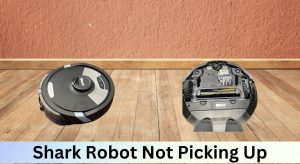

Is your Shark ION Robot R85 refusing to cooperate? It can be frustrating when your robotic vacuum cleaner suddenly stops working. This guide provides a comprehensive approach to troubleshooting common issues with the Shark ION Robot R85, helping you get it back to cleaning your floors in no time. We’ll cover everything from basic checks to more advanced troubleshooting steps.
1. Initial Checks and Basic Troubleshooting

Before diving into more complex solutions, let’s start with the basics. Often, the issue is something simple that can be resolved quickly.
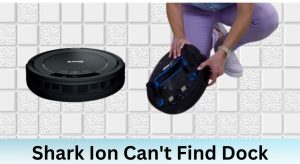
- Power and Charging: Ensure the robot is properly charged. Place it on the charging dock and make sure the charging indicator light turns on. Allow it to charge for several hours, even overnight, to ensure a full charge.
- Check the Power Switch: Make sure the power switch, usually located on the side or bottom of the robot, is in the “ON” position. It seems obvious, but it’s easily overlooked.
- Clean the Charging Contacts: Use a dry cloth to clean the charging contacts on both the robot and the charging dock. Dust or debris can interfere with the charging process.
- Obstructions: Look for any visible obstructions that may be preventing the robot from moving freely. This includes tangled cords, small objects, or even pet hair buildup around the wheels.
2. Addressing Common Error Codes and Indicator Lights

The Shark ION Robot R85 uses indicator lights to communicate potential problems. Here’s what some of those lights mean and how to address them:
- Solid Red Light: Indicates a general error. Try turning the robot off and then on again. If the light persists, it could indicate a more serious issue.
- Blinking Red Light: Often means the robot is stuck or has detected an obstacle. Clear any obstructions and restart the robot.
- No Light: Check the power switch and charging connections. If the robot is fully charged and still has no light, there might be an internal issue.
- Check the SharkClean App: The app can provide more specific error messages and troubleshooting steps. Make sure your robot is connected to your Wi-Fi network to receive these updates.
3. Cleaning and Maintaining Your Shark ION Robot R85
Regular cleaning and maintenance are essential for optimal performance. A dirty robot is a malfunctioning robot.
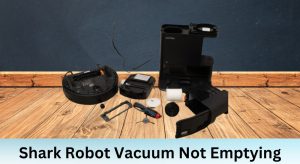
- Empty the Dust Bin: This is the most frequent maintenance task. Empty the dust bin after each cleaning session to prevent it from overfilling, which can cause suction issues.
- Clean the Brushes: Remove the main brushroll and side brushes. Clear away any tangled hair, threads, or debris. Use the cleaning tool (often included with the robot) or scissors to cut away stubborn tangles.
- Clean the Sensors: Use a soft, dry cloth to gently wipe the cliff sensors on the bottom of the robot. Dirty sensors can cause navigation problems or prevent the robot from detecting edges and stairs.
- Check the Wheels: Ensure the wheels are free from debris. Hair and dirt can accumulate around the axles, hindering movement.
4. Resolving Suction Issues

A loss of suction power is a common complaint. Here’s how to troubleshoot it:
- Check for Blockages: Inspect the dust bin, filters, and brushroll for any blockages. Remove any obstructions that you find.
- Clean the Filters: Remove and clean the filters regularly. Rinse them with water and allow them to dry completely before reinstalling. Replace the filters every few months, or as needed, depending on usage.
- Inspect the Suction Motor: Although not easily accessible, listen for unusual noises from the suction motor. If it sounds strained or weak, it might indicate a motor issue requiring professional repair.
5. Addressing Navigation and Movement Problems
If your robot is bumping into things, getting stuck, or not following its programmed path, these steps can help:
- Mapping Issues: If your R85 is equipped with mapping capabilities, ensure the map is accurate and up-to-date. Reset the map in the app if necessary.
- Clear the Cleaning Area: Remove obstacles such as loose wires, small rugs, and clothing from the cleaning area.
- Check the Cliff Sensors: As mentioned earlier, clean the cliff sensors to ensure they are functioning correctly.
- Reset the Robot: A simple reset can often resolve navigation issues. Turn the robot off, wait a few seconds, and then turn it back on.
6. Troubleshooting Connectivity Issues
If you’re having trouble connecting your Shark ION Robot R85 to your Wi-Fi network or the SharkClean app, try these steps:
- Check Your Wi-Fi Network: Make sure your Wi-Fi network is working properly. Restart your router and modem if necessary.
- Ensure Compatibility: Verify that your Wi-Fi network is compatible with the robot. The R85 typically supports 2.4 GHz networks.
- Restart the Robot and App: Close the SharkClean app and restart your robot. Then, reopen the app and try connecting again.
- Update the App: Make sure you have the latest version of the SharkClean app installed on your smartphone or tablet.
- Re-Pair the Robot: In the app, try removing the robot and then re-pairing it to your Wi-Fi network.
7. Factory Resetting Your Shark ION Robot R85
If all else fails, a factory reset can sometimes resolve persistent issues. Keep in mind that this will erase all your settings and preferences.
- Consult the Manual: Refer to your user manual for specific instructions on how to perform a factory reset. The process may vary slightly depending on the model.
- Locate the Reset Button: Some models have a physical reset button, while others require a specific sequence of button presses.
- Follow the Instructions Carefully: Follow the instructions in the manual carefully to avoid causing further problems.
8. When to Seek Professional Help
If you’ve tried all the troubleshooting steps and your Shark ION Robot R85 is still not working, it might be time to seek professional help.
- Contact Shark Customer Support: Contact Shark customer support for further assistance. They may be able to provide additional troubleshooting steps or recommend a repair service.
- Check the Warranty: If your robot is still under warranty, you may be able to get it repaired or replaced free of charge.
- Find a Qualified Repair Technician: If your robot is out of warranty, you can try to find a qualified repair technician who specializes in robotic vacuum cleaners.
FAQ Section
Why is my Shark ION Robot R85 not charging?
Ensure the charging contacts are clean, the power switch is on, and the robot is properly placed on the charging dock. A solid light indicates charging. If it still doesn’t charge, the battery or charging dock may be faulty.
How do I clean the filters on my Shark ION Robot R85?
Remove the filters and rinse them with water. Allow them to air dry completely before reinstalling. Avoid using soap or detergents, as they can damage the filter material.
What does it mean when my Shark ION Robot R85 is blinking red?
A blinking red light usually indicates that the robot is stuck or has detected an obstacle. Clear any obstructions and restart the robot. If the problem persists, check the sensors for dirt or damage.
How do I reset the mapping on my Shark ION Robot R85?
Open the SharkClean app, navigate to the robot settings, and look for the option to reset or remap. Follow the on-screen instructions to create a new map of your home.
My Shark ION Robot R85 is making a loud noise. What should I do?
Turn off the robot and inspect the brushroll and wheels for obstructions. Remove any tangled hair, threads, or debris. If the noise persists, it could indicate a motor issue requiring professional repair.
Can I use my Shark ION Robot R85 on hardwood floors?
Yes, the Shark ION Robot R85 is designed to work on both hardwood floors and carpets. However, you may need to adjust the settings in the app to optimize performance for different floor types.
Tips, Warnings, and Best Practices
- Safety First: Always turn off the robot before performing any maintenance or repairs.
- Regular Maintenance: Schedule regular cleaning and maintenance to prevent problems before they occur.
- Read the Manual: Familiarize yourself with the user manual for specific instructions and troubleshooting tips.
- Avoid Liquids: Do not allow the robot to come into contact with liquids, as this can damage the internal components.
- Supervise Initial Runs: During the first few cleaning sessions, supervise the robot to identify potential hazards or problem areas.
Conclusion
Troubleshooting a malfunctioning Shark ION Robot R85 can seem daunting, but by following these steps, you can often resolve common issues and get your robot back to cleaning. Remember to start with the basics, maintain your robot regularly, and seek professional help when needed. Getting your Shark ION Robot R85 working again ensures your home stays clean with minimal effort.