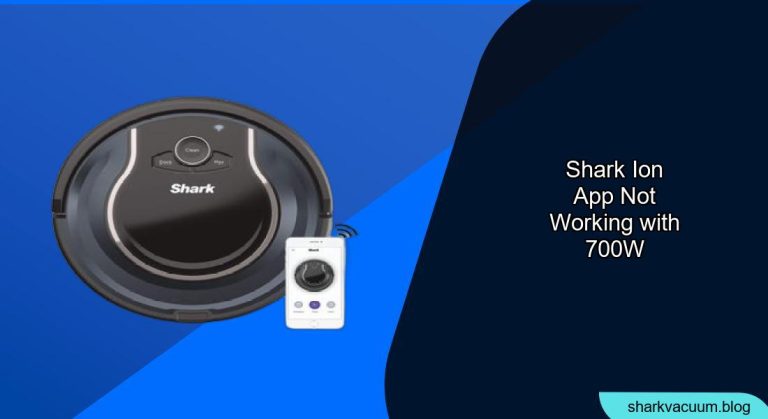
Experiencing issues connecting your Shark ION robot vacuum to the app, especially with the 700W model, can be frustrating. You’re likely looking for a convenient way to control your vacuum, schedule cleanings, and monitor its performance, but the app isn’t cooperating. This article will walk you through the common causes of this problem and provide detailed steps to get your Shark ION robot vacuum and the app working together seamlessly.
Understanding the Issue: Why Won’t My Shark ION Connect?
Several reasons can cause connectivity problems between the Shark ION robot and the app. These range from simple Wi-Fi issues to more complex compatibility problems. We will explore these causes in detail, focusing on the 700W model, and provide troubleshooting steps to resolve each one.
Initial Checks: Laying the Groundwork for Success
Before diving into advanced troubleshooting, perform these basic checks:
- Check Wi-Fi Connection: Ensure your smartphone or tablet is connected to a stable 2.4 GHz Wi-Fi network. The Shark ION robot vacuum typically requires a 2.4 GHz network for initial setup and connectivity.
- Verify App Compatibility: Make sure you have the latest version of the SharkClean app installed on your device. Outdated app versions can have bugs or compatibility issues.
- Robot Vacuum Placement: Position the robot vacuum in an area with strong Wi-Fi signal coverage. Walls and other obstructions can weaken the signal.
- Power Cycle the Robot: Turn off the robot vacuum and unplug it for a few minutes. Then, plug it back in and turn it on. This can sometimes resolve temporary glitches.
Troubleshooting Steps: Getting Your Shark ION Connected
If the initial checks didn’t solve the problem, try these more in-depth troubleshooting steps:
- Wi-Fi Network Issues
- Confirm 2.4 GHz Network: Most Shark ION robots, including the 700W, require a 2.4 GHz Wi-Fi network. Check your router settings to ensure this network is enabled.
- Check Wi-Fi Signal Strength: Use a Wi-Fi analyzer app on your smartphone to measure the signal strength near the robot vacuum’s charging base. A weak signal can cause connection problems.
- Router Compatibility: Some routers may have compatibility issues with IoT devices like robot vacuums. Check your router manufacturer’s website for firmware updates or known issues.
- Guest Network: Avoid connecting the robot to a guest network, as these networks often have restricted access.
- App-Related Problems
- Clear App Cache: In your smartphone’s settings, find the SharkClean app and clear its cache. This can resolve issues caused by corrupted temporary files.
- Reinstall the App: Uninstall the SharkClean app and reinstall it from the app store. This ensures you have a fresh installation with the latest updates.
- App Permissions: Verify that the SharkClean app has all the necessary permissions, including access to Wi-Fi, Bluetooth, and location services.
- Robot Vacuum Reset
- Factory Reset: Refer to your Shark ION 700W robot vacuum’s user manual for instructions on performing a factory reset. This will restore the robot to its original settings and may resolve persistent connectivity issues. Warning: performing a factory reset means you will need to set up the robot again from scratch.
- Restart the Robot: Turn off the robot vacuum and remove the battery for a minute. Reinsert the battery and turn the robot back on. This can sometimes clear internal errors.
- Account and Registration Issues
- Verify Account Details: Double-check that you are using the correct email address and password for your SharkClean account.
- Re-register the Robot: If you have previously registered the robot, try removing it from your account and re-registering it. Follow the app’s instructions for adding a new device.
Practical Tips for a Smooth Connection

- Minimize Interference: Keep the robot vacuum away from other electronic devices that may cause Wi-Fi interference, such as microwaves and Bluetooth speakers.
- Update Router Firmware: Regularly update your router’s firmware to ensure optimal performance and compatibility with IoT devices.
- Use a Wi-Fi Extender: If you have a large home or areas with weak Wi-Fi signal, consider using a Wi-Fi extender to improve coverage.
FAQ: Addressing Common Questions
Why does my Shark ION robot keep disconnecting from Wi-Fi?
- A weak Wi-Fi signal, interference from other devices, or router compatibility issues can cause frequent disconnections. Try moving the robot closer to the router or using a Wi-Fi extender.
How do I reconnect my Shark ION robot to the app after changing my Wi-Fi password?
- You will need to remove the robot from your SharkClean account and re-register it with the new Wi-Fi password. Follow the app’s instructions for adding a new device.
What does the blinking light on my Shark ION robot mean?
- The blinking light indicates its status. Consult your user manual to identify the exact meaning. It could mean that it is trying to connect to Wi-Fi, is low on battery, or encountering an error.
Is the Shark ION 700W compatible with 5 GHz Wi-Fi networks?
- No, the Shark ION 700W typically requires a 2.4 GHz Wi-Fi network. Most models are not compatible with 5 GHz networks.
Can I control my Shark ION robot without the app?
- Yes, you can usually start, stop, and dock the robot using the physical buttons on the device. However, you will need the app to access advanced features like scheduling and cleaning history.
What if none of these steps work?
- Contact Shark customer support for further assistance. They may be able to provide more specific troubleshooting steps or determine if there is a hardware issue with your robot vacuum.
Tips, Warnings, and Best Practices
- Safety First: Always turn off and unplug the robot vacuum before performing any maintenance or troubleshooting steps.
- Read the Manual: Refer to your Shark ION 700W robot vacuum’s user manual for detailed instructions and specific troubleshooting tips.
- Regular Maintenance: Clean the robot vacuum’s brushes and filters regularly to ensure optimal performance and prevent clogs that can interfere with its operation.
Conclusion
Getting your Shark ION 700W robot vacuum connected to the app can significantly enhance your cleaning experience. By following these troubleshooting steps and practical tips, you can resolve common connectivity issues and enjoy the convenience of controlling your robot vacuum from your smartphone. Remember to check your Wi-Fi connection, app settings, and robot vacuum status to ensure a smooth and seamless connection.