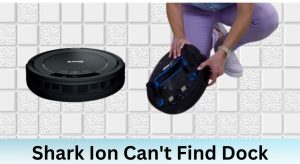

The Shark robot vacuum is a reliable and efficient cleaning tool, but like any device, it can encounter issues. One common problem is the drive wheel error, often signaled by red flashing lights or app notifications. This error can hinder the vacuum’s performance, making it essential to address promptly to ensure longevity and optimal functionality.
Understanding the root causes of the drive wheel error is the first step toward resolving it. Whether it’s debris accumulation, worn-out wheels, software glitches, or misalignment, identifying the issue will help you implement the right solution. Regular maintenance and timely troubleshooting can prevent this error from recurring, keeping your vacuum in top shape.
Possible Causes of the Drive Wheel Error

Debris Accumulation
Debris such as hair, dust, and dirt can accumulate around the wheels, causing them to malfunction. This buildup can obstruct the wheels’ movement, leading to the drive wheel error. Regular cleaning is crucial to prevent debris from interfering with the vacuum’s performance. Focus on the wheels and side brushes, as these areas are prone to collecting dirt.
To clean the wheels, use a soft brush or compressed air to remove trapped debris. For the side brushes, detach them gently and clean between the bristles. This simple maintenance routine can significantly reduce the risk of drive wheel errors.
Worn-out Wheels
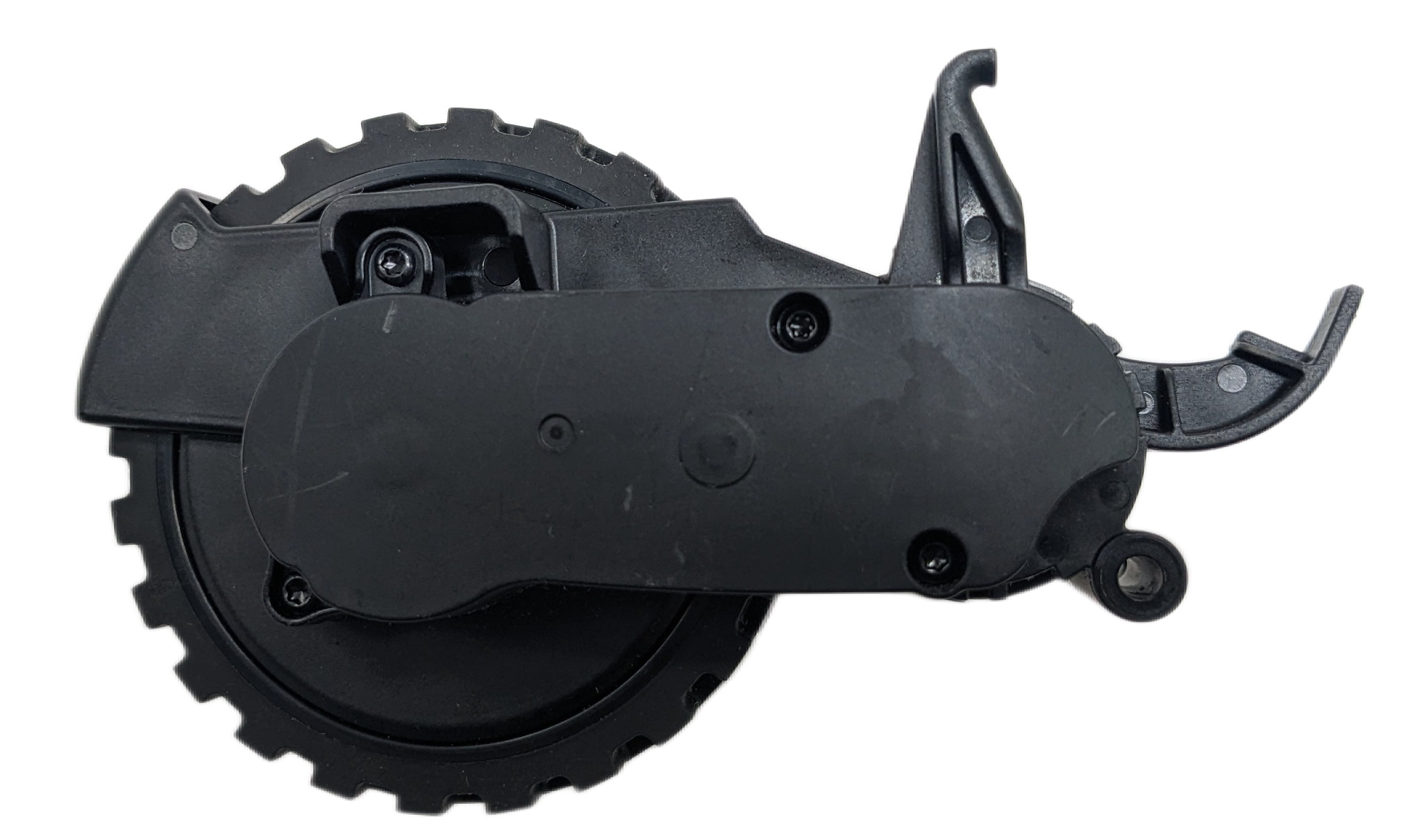
Over time, the wheels of your Shark robot vacuum may wear out due to regular use. Signs of wear include cracks, fractures, or excessive wear on the wheel surface. Worn-out wheels can lead to misalignment or complete failure, triggering the drive wheel error.
Inspecting the wheels periodically is essential. If you notice significant wear, replace the wheels promptly. Replacement wheels are available on Shark’s official website, ensuring compatibility and quality. Using genuine parts will help maintain the vacuum’s performance and prevent further issues.
Software Issues
Software glitches can also cause the drive wheel error. Outdated firmware or temporary bugs may disrupt the vacuum’s functionality. Keeping the SharkClean app and the vacuum’s software up to date is vital to avoid such problems.
To update the software, open the SharkClean app and check for available updates. If an update is available, follow the on-screen instructions to install it. Additionally, resetting the vacuum can resolve minor software issues. Simply power off the device, wait for a few seconds, and turn it back on.
Troubleshooting Steps

Step 1: Clean the Wheels and Side Brushes
Start by cleaning the wheels and side brushes to remove any debris. Use a soft brush or compressed air to dislodge dirt and hair. For the side brushes, detach them and clean between the bristles. Regular cleaning prevents blockages and ensures smooth operation.
If the wheels are worn out or not rotating smoothly, consider replacing them. You can find high-quality replacement wheels for robot vacuums on Amazon.
Step 2: Inspect for Blockages and Debris
Next, inspect the wheels and surrounding components for blockages. Check for tangled hair, dust, or other debris that may obstruct movement. Remove any obstructions carefully to restore proper functionality.
Step 3: Update the Software and Reset the Vacuum
Ensure the vacuum’s software is up to date by checking the SharkClean app. Install any available updates to fix potential glitches. If the issue persists, reset the vacuum by powering it off and on again. This simple step can resolve minor software-related errors.
Common Issues and Error Codes
Error Code 18
Error code 18 is often associated with the drive wheel error. It typically indicates a problem with the wheels’ rotation or alignment. To resolve this, clean the wheels thoroughly and check for blockages. If the error persists, inspect the wheels for damage and replace them if necessary.
Wheel Misalignment
Wheel misalignment can cause uneven movement or vibration, leading to drive wheel errors. To realign the wheels, remove them and ensure they are properly installed. Tighten any loose screws and test the vacuum to confirm smooth operation.
Maintenance and Prevention
Regular Cleaning
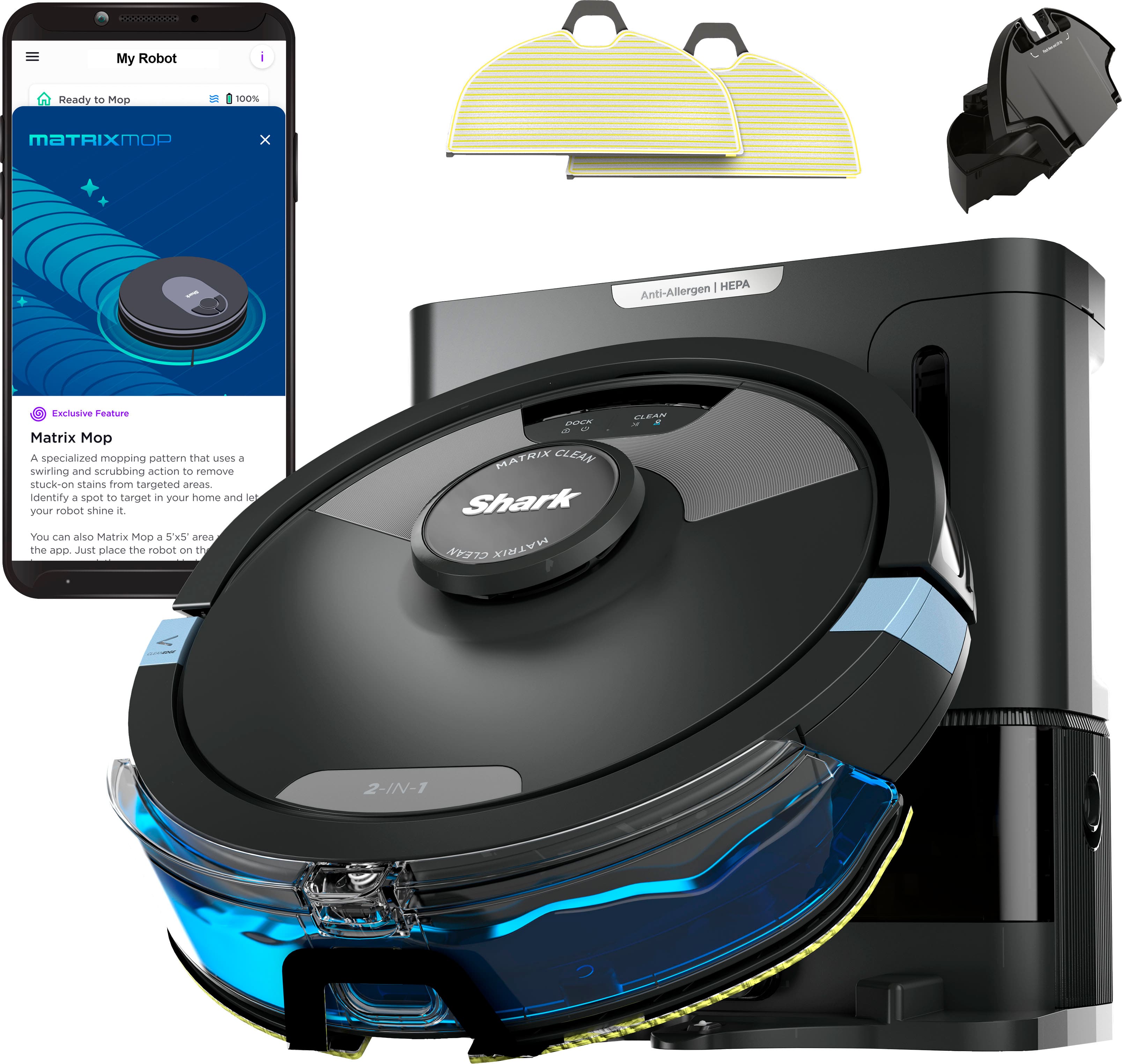
Schedule regular cleaning sessions to prevent debris buildup. Focus on the wheels, side brushes, and sensors to maintain optimal performance. Empty the dust bin after each use and clean the filters as recommended by the manufacturer.
Inspecting and Replacing Components
Periodically inspect the vacuum’s components for wear and tear. Replace worn-out parts, such as wheels and brushes, to prevent further damage. Using genuine parts ensures compatibility and extends the vacuum’s lifespan.
Contacting Shark Customer Service
If troubleshooting steps fail to resolve the drive wheel error, contact Shark customer service for assistance. Provide detailed information about the issue, including error codes and symptoms. Shark’s support team can guide you through advanced troubleshooting or arrange repairs if necessary.
By addressing the Shark robot vacuum drive wheel error promptly and following these maintenance tips, you can ensure your vacuum operates efficiently for years to come. Regular care and timely repairs are key to maximizing its performance and longevity.