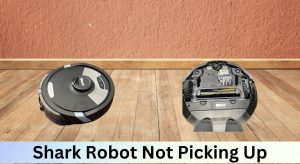
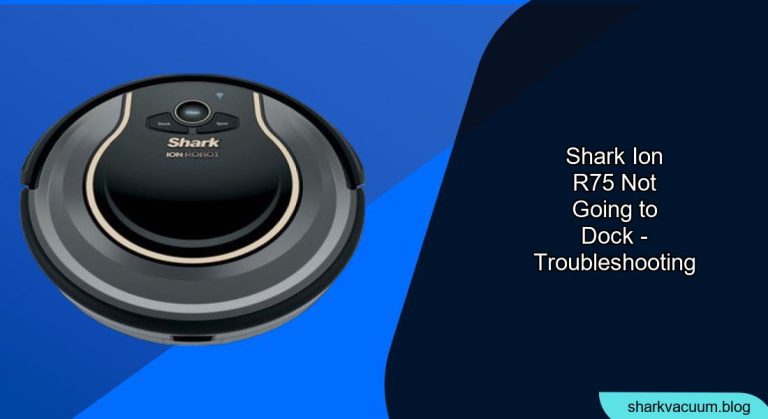
Is your Shark ION R75 robot vacuum refusing to return to its dock? This can be frustrating, but don’t worry! This guide will walk you through common causes and troubleshooting steps to get your robotic friend back on track. We’ll cover everything from simple fixes to more advanced solutions, ensuring your Shark ION R75 docks successfully every time.
The Shark ION R75 is a valuable tool for keeping your floors clean, and a crucial part of its functionality is its ability to automatically return to its dock to recharge. When it fails to dock, it can disrupt your cleaning schedule and leave you with a vacuum that’s out of commission. This article will provide a detailed, step-by-step guide to diagnosing and resolving docking issues, ensuring your Shark ION R75 stays ready for its next cleaning mission.
Common Reasons Why Your Shark ION R75 Won’t Dock

Several factors can prevent your Shark ION R75 from docking correctly. Identifying the root cause is the first step to finding a solution. Here are some of the most common culprits:
- Obstructions: Objects blocking the vacuum’s path to the dock or the dock itself.
- Dock Placement: Improper dock placement can interfere with the robot’s navigation.
- Low Battery: If the battery is too low, the vacuum may not have enough power to find the dock.
- Sensor Issues: Dirty or malfunctioning sensors can hinder the robot’s ability to “see” the dock.
- Software Glitches: Occasional software hiccups can disrupt the docking process.
Troubleshooting Steps: Getting Your Shark ION R75 Back on Track
Follow these steps to diagnose and resolve the docking issue with your Shark ION R75:
1. Clear Obstructions and Ensure a Clear Path
The most common cause of docking problems is obstructions.
- Inspect the Path: Carefully examine the area between the vacuum and the dock. Remove any obstacles such as cords, small rugs, toys, or furniture that might be blocking its path.
- Check the Dock Area: Ensure the area around the dock is clear of clutter. The Shark ION R75 needs ample space to maneuver into the charging base. Aim for at least 3 feet of clear space in front of the dock and 1.5 feet on either side.
- Consider Reflective Surfaces: Highly reflective surfaces like mirrors or stainless steel can confuse the robot’s sensors. Try repositioning the dock if it’s near such surfaces.
2. Optimize Dock Placement
The dock’s location plays a critical role in the vacuum’s ability to find and connect with it.
- Hard Surface Placement: Place the dock on a hard, level surface. Avoid placing it on carpets or rugs, as this can interfere with the robot’s navigation.
- Against a Wall: Position the dock against a wall to provide a stable reference point for the vacuum.
- Avoid Hidden Areas: Do not place the dock in a corner, under furniture, or in an area with poor lighting. The robot needs a clear line of sight to the dock.
- Minimize Movement: Ensure the dock is stable and won’t be easily moved or bumped.
3. Manually Charge and Restart
If the battery is too low, the robot may not have enough power to find the dock.
- Manually Dock: Place the Shark ION R75 on the dock manually to initiate charging.
- Full Charge: Allow the vacuum to charge completely. This can take several hours.
- Restart the Vacuum: After charging, turn the vacuum off and then back on again. This can sometimes resolve software glitches.
- Test Docking: Send the vacuum out for a short cleaning cycle and see if it successfully returns to the dock on its own.
4. Clean the Sensors
Dirty sensors can impair the vacuum’s ability to navigate and find the dock.
- Locate Sensors: Identify the sensors on the bottom and front of the Shark ION R75. Consult the user manual for their exact locations.
- Gentle Cleaning: Use a soft, dry cloth to gently wipe the sensors clean. Avoid using liquids or abrasive cleaners, as these can damage the sensors.
- Regular Maintenance: Clean the sensors regularly, especially if you have pets or live in a dusty environment.
5. Check the Charging Contacts
Ensure the charging contacts on both the vacuum and the dock are clean and making good contact.
- Inspect Contacts: Examine the metal charging contacts on the vacuum and the dock.
- Clean Contacts: Use a dry cloth or cotton swab to gently clean the contacts. If there’s any buildup, you can lightly dampen the cloth with isopropyl alcohol.
- Ensure Alignment: Make sure the contacts align properly when the vacuum attempts to dock.
6. Reset the Vacuum
A reset can often resolve software-related docking issues.
- Locate Reset Button: Consult the user manual to find the reset button on your Shark ION R75 model. It’s often located on the bottom of the vacuum.
- Press and Hold: Use a paperclip or similar object to press and hold the reset button for 10-15 seconds.
- Re-Test: After the reset, allow the vacuum to charge fully and then test its ability to dock.
7. Check for Firmware Updates
Outdated firmware can sometimes cause docking problems.
- Shark App: Check the Shark app for any available firmware updates for your ION R75.
- Install Updates: If an update is available, follow the app’s instructions to install it. Ensure the vacuum is connected to Wi-Fi and has sufficient battery life during the update process.
Troubleshooting Guide
| Problem | Possible Cause(s) | Solution(s) |
|---|---|---|
| Vacuum doesn’t find the dock | Obstructions, poor dock placement, dirty sensors | Clear obstructions, reposition dock, clean sensors |
| Vacuum attempts to dock but fails | Misaligned contacts, weak battery, software glitch | Clean contacts, manually charge, reset the vacuum |
| Docking is intermittent | Wi-Fi connectivity issues, firmware bugs | Ensure stable Wi-Fi, check for firmware updates |
| Vacuum gets lost on the way | Cluttered environment, reflective surfaces | Declutter the area, move dock away from reflective surfaces |
| Vacuum charges but won’t dock | Charging contacts not properly aligned, software bug | Check alignment, reset vacuum |
Pro Tips for Maintaining Docking Performance

- Regular Cleaning: Regularly clean the vacuum, including its sensors and wheels, to maintain optimal performance.
- Scheduled Cleaning: Use the Shark app to schedule regular cleaning sessions. This can help the vacuum learn its environment and improve its navigation.
- Monitor Battery Health: Keep an eye on the battery health. If the battery is degrading rapidly, consider replacing it.
- Keep Firmware Updated: Always keep the vacuum’s firmware updated to ensure you have the latest bug fixes and performance improvements.
Alternatives and Variations
If your Shark ION R75 continues to have docking issues despite your troubleshooting efforts, here are some alternative solutions to consider:
- Virtual Boundaries: Use the Shark app to set up virtual boundaries to guide the vacuum back to the dock.
- Replacement Dock: If you suspect the dock itself is faulty, consider purchasing a replacement dock.
- Professional Repair: Contact Shark customer support or a qualified appliance repair technician for assistance.
FAQ: Common Questions About Shark ION R75 Docking Issues
Why does my Shark ION R75 keep getting lost on its way back to the dock?
Your Shark ION R75 might be getting lost due to several factors. Obstructions in its path, changes in furniture arrangement, or reflective surfaces can confuse its navigation system. Ensure a clear path to the dock, avoid placing the dock near mirrors, and consider using virtual boundaries to guide it.
How often should I clean the sensors on my Shark ION R75 to ensure proper docking?
Cleaning the sensors on your Shark ION R75 every one to two weeks is generally recommended. If you have pets or live in a dusty environment, you might need to clean them more frequently. Regular cleaning helps maintain the sensors’ accuracy, improving docking performance.
What do I do if my Shark ION R75 charges when manually placed on the dock, but still won’t dock automatically?
If your Shark ION R75 charges manually but won’t dock automatically, the issue might be related to misaligned charging contacts or a software glitch. Ensure the contacts are clean and properly aligned. Try resetting the vacuum and checking for firmware updates.
Can Wi-Fi connectivity issues affect my Shark ION R75’s ability to dock?
Yes, Wi-Fi connectivity issues can affect your Shark ION R75’s ability to dock. A stable Wi-Fi connection is essential for the vacuum to communicate with the Shark servers and receive updates. Ensure your Wi-Fi network is functioning correctly, and the vacuum is connected.
Is it better to leave my Shark ION R75 on the dock all the time, or should I remove it once it’s fully charged?
It’s generally safe to leave your Shark ION R75 on the dock all the time. The charging system is designed to prevent overcharging, so it won’t damage the battery. Leaving it on the dock ensures it’s always ready for its next cleaning cycle.
Tips, Warnings, and Best Practices
- Safety First: Always turn off the vacuum and unplug the dock before performing any maintenance or cleaning.
- Avoid Water: Never use water or other liquids to clean the vacuum or the dock, as this can cause damage.
- Regular Maintenance: Perform regular maintenance, such as cleaning the brushes and filters, to keep the vacuum in optimal condition.
- Read the Manual: Always refer to the user manual for specific instructions and troubleshooting tips for your Shark ION R75 model.
Conclusion
A Shark ION R75 that won’t dock can be a significant inconvenience, but by following the troubleshooting steps outlined in this guide, you can often resolve the issue and get your robot vacuum back to work. Remember to check for obstructions, optimize dock placement, clean the sensors, and keep the firmware updated. With a little maintenance and attention, your Shark ION R75 will be docking reliably and keeping your floors clean for years to come. If problems persist, consider contacting Shark customer support for further assistance.